The default
macOS saves screenshots to the Desktop as PNG files named Screenshot <date> at <time>.png. Nothing is hidden and nothing is compressed away — it is a full-resolution PNG, which on a Retina display means twice the pixel dimensions of what you see.
Changing the folder from the toolbar
Press ⌘ ⇧ 5, click Options, and pick a destination under *Save to*. Choosing Other Location… lets you point at any folder. This is the setting most people want and it survives restarts.
Changing it from the command line
If you prefer to script it, or you are setting up a new Mac from a dotfiles repo:
defaults write com.apple.screencapture location ~/Pictures/Screenshots— sets the folder (create it first).defaults write com.apple.screencapture type jpg— switches the format. Acceptspng,jpg,pdf,tiff,heic.defaults write com.apple.screencapture disable-shadow true— drops the drop shadow from window captures.killall SystemUIServer— applies the changes.
These write to a preference domain Apple has never formally documented. They have worked for many macOS versions, but treat them as convenience rather than contract — the toolbar's Options menu is the supported route.
Turning off the floating thumbnail
After every capture a thumbnail floats in the bottom-right corner for a few seconds. It is a shortcut to markup, but it also sits on top of whatever you were doing and delays the file being written. ⌘ ⇧ 5 → Options → uncheck Show Floating Thumbnail removes it.
The other problem: finding a screenshot two weeks later
A folder full of Screenshot 2026-08-14 at 09.12.44.png is not searchable in any useful sense. You remember what was *in* the screenshot, not when you took it.
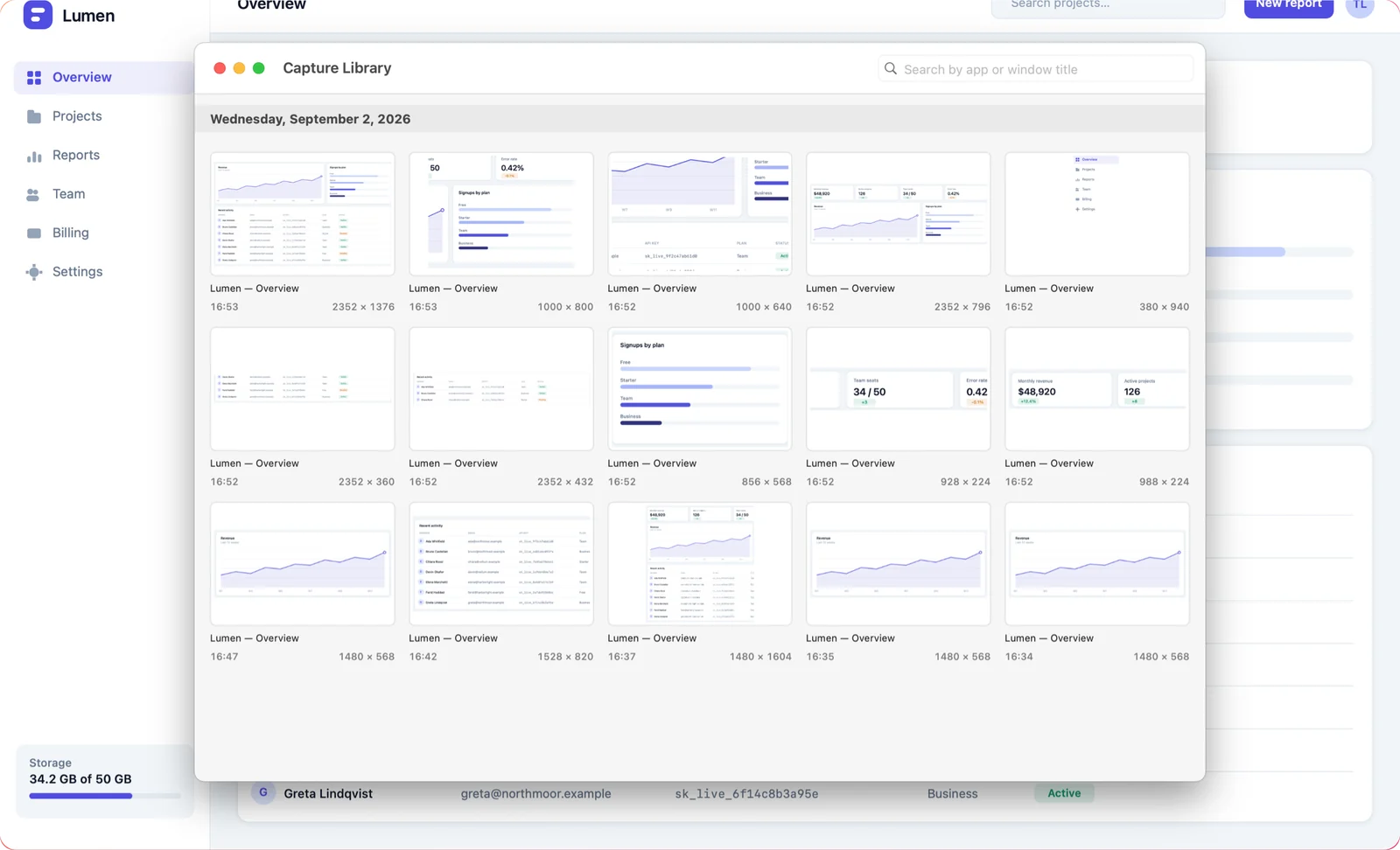
Shotcake keeps its own capture library alongside whatever you export. Every shot stays in a grid you can search, and opening one gives you back the editable annotations rather than a flattened image. Export settings — folder, format, scale and a custom filename template — live in Settings → Export.